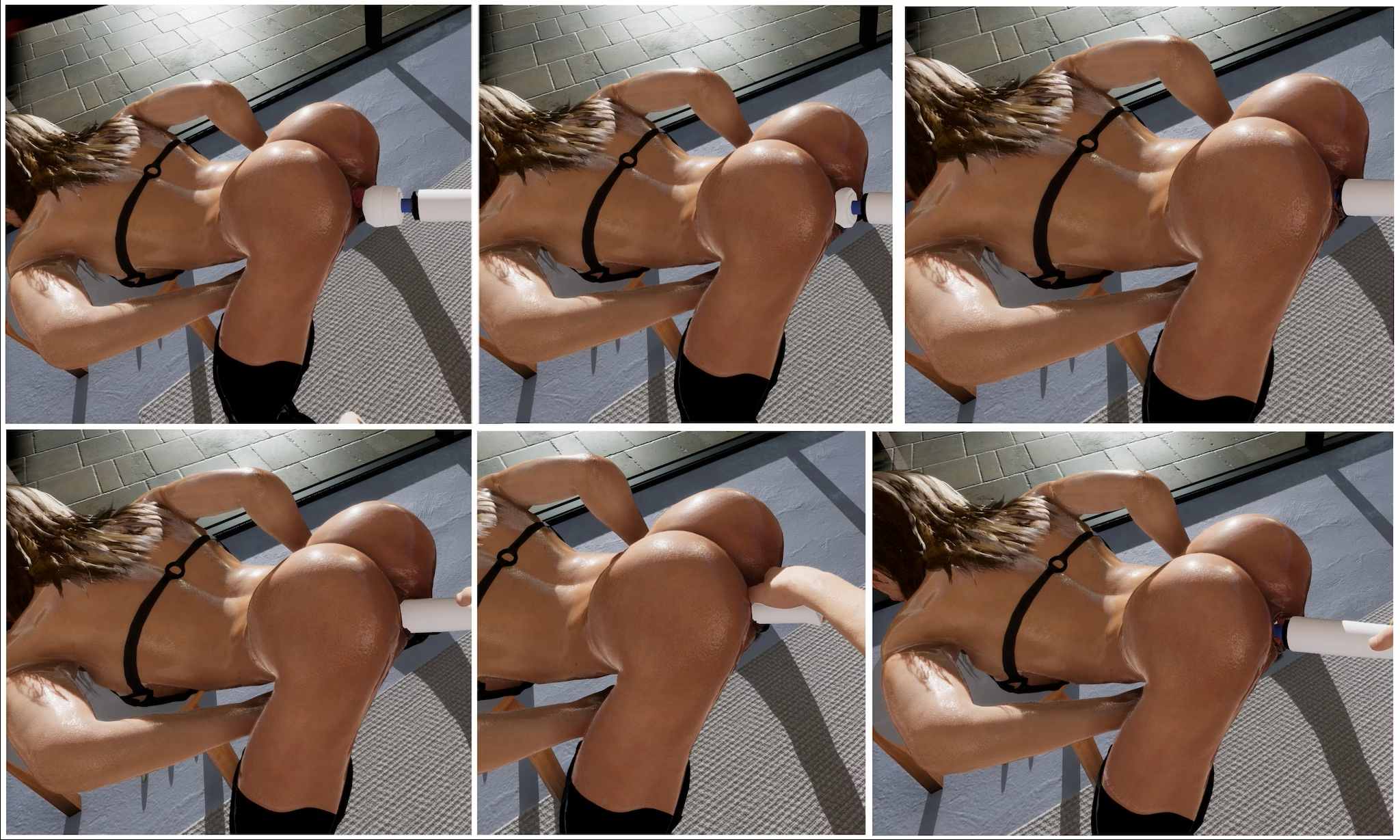
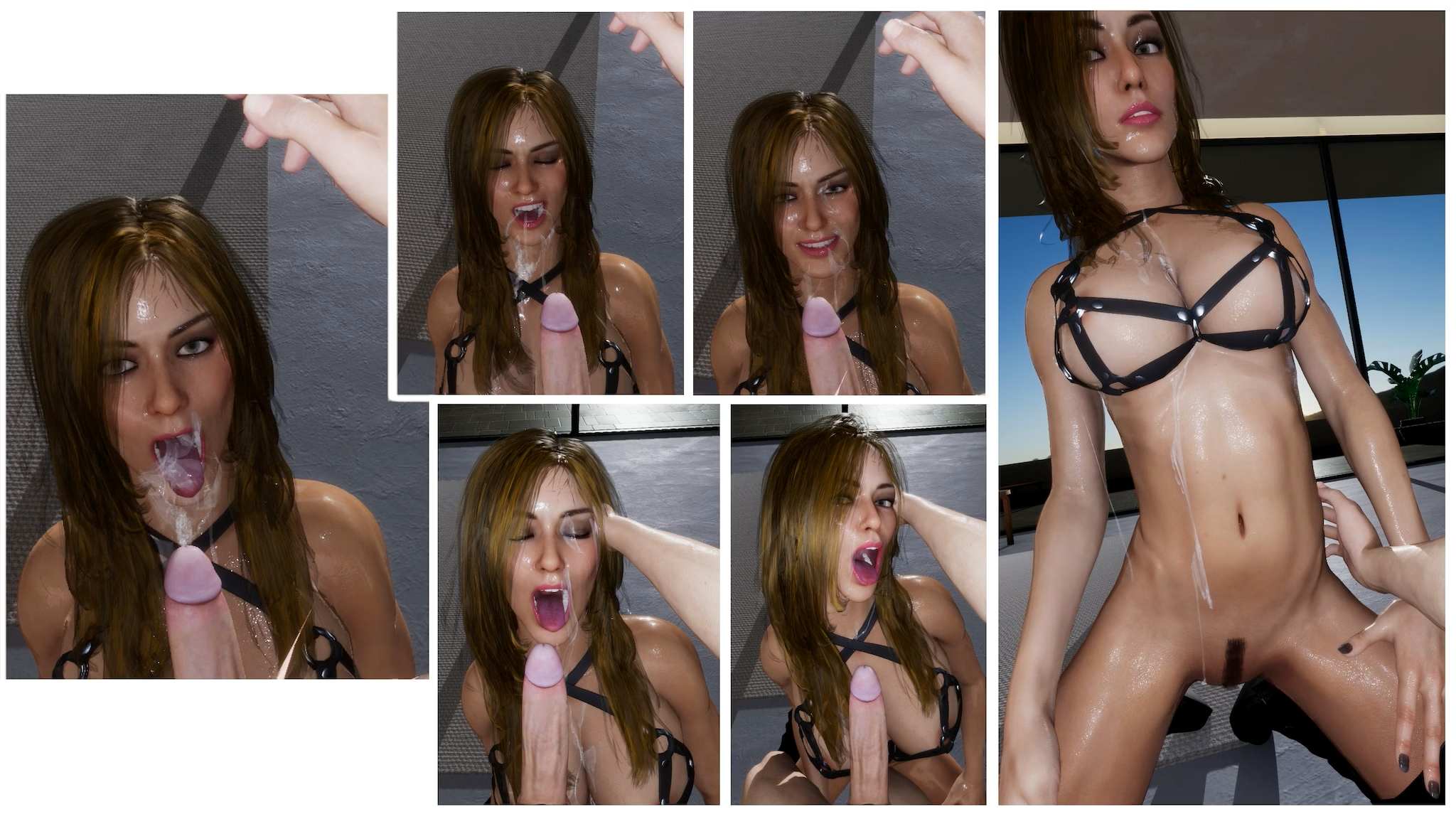
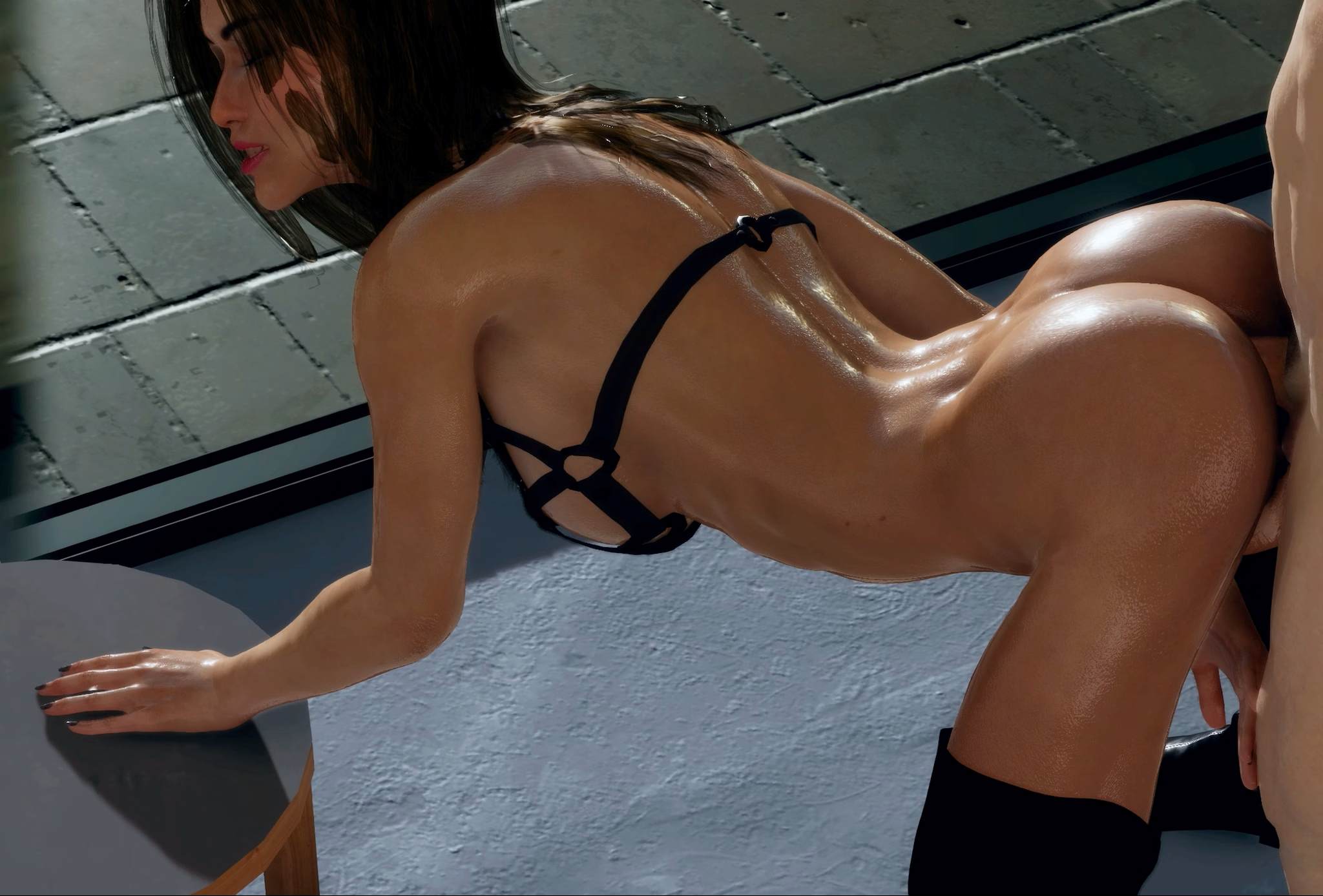

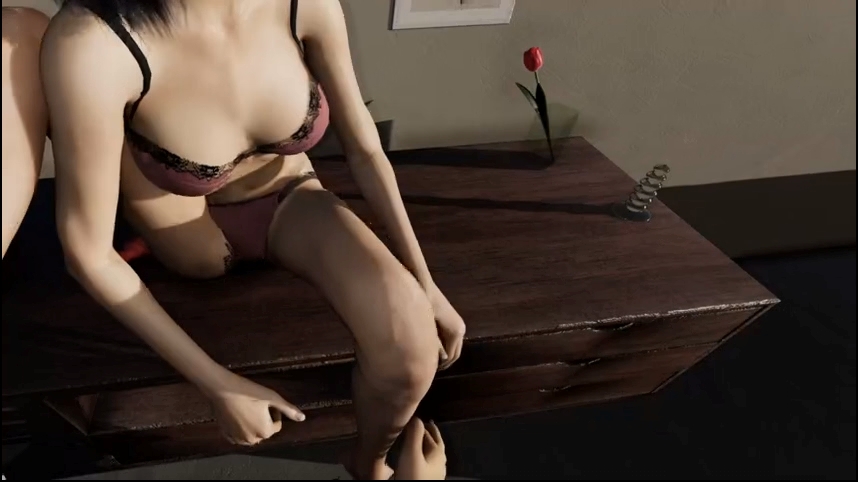
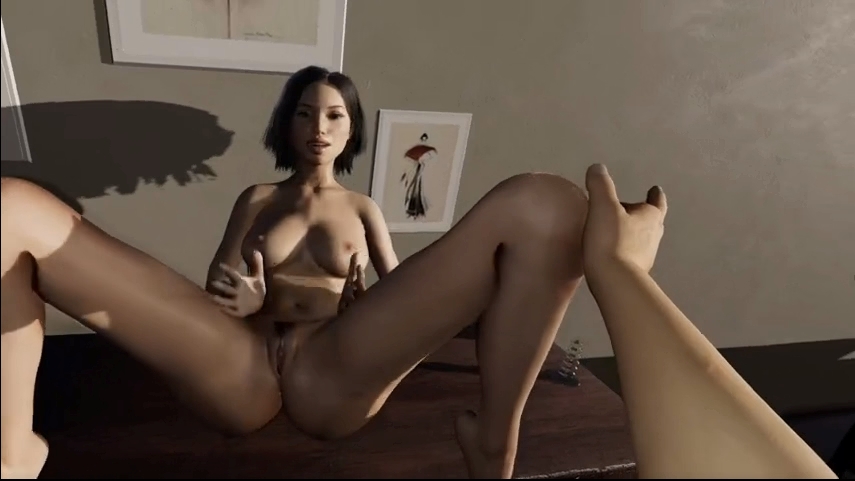
VR HOT is a digital sex toy for creating and interacting with dream partners.
It gives you the opportunity to explore your most intimate desires in a non-judgmental surrounding.
VR HOT offers a virtual environment and a construction kit for dream partners and the interaction with them.
(VR only – Limited Desktop Support)
All SteamVR-compatible headsets (not standalone) should be compatible.
Compatibility tested and confirmed for Oculus Quest 1 (with Link) and Valve Index.
Installation:
1- Extract and run.
Developer: VR Hot
Censored: No
Version: v0.10.2
Language: English
Genre: 3d game, male protagonist, big tits, big ass, VR, vaginal sex, groping, character creation
v0.10.2
New
- Visual Slider Indicator – Hovering over a slider now highlights the Hottie body parts affected by it.
- Auto-alignement – Your Hottie will automatically move to the edge of the furniture for intercourse positions (if the player body isn’t close).
- Arm Control in Desktop Mode – Control the player body’s arms with mouse and keyboard (L/R CTRL + mouse; use a mouse button to grab).
- Cum in Desktop Mode – Ejaculate by double-clicking the mouse wheel.
- Hip control in Desktop Mode – Thrust with the player body’s hips via the mouse wheel.
Improvements
- Sitting / lying down – Hottie animations for sitting and lying down are now much more precise.
- Interaction Menu – New fingertip symbol for easier navigation of the Interaction Menu.
- Rotation in Desktop Mode – Smoother rotation of the player body in Desktop Mode.
- Manual adjustment of Hottie – The manual adjustment of the Hottie’s legs is now easier and more reliable.
- Animation Improvements – Additional improved animations, smoother and more natural movement.
- Renovation – Our first environment, Room with a view, has been fully renovated: better visuals, improved usability and higher performance.
- Manual Hottie Rotation – You can now rotate the Hottie manually only when grabbing the torso or arms. This allows leg posing without accidentally rotating the whole body.
- Lip sync – Improved (and more efficient) lip sync for all recorded lines and moans.
- Lip sync (Male) – Better lip sync for male Hotties.
- Male Hottie Graphics – Better looking male Hotties on „Highly detailed character“.
- Body Hair – Simplified UI and improved rendering.
- Performance – Significant optimizations for both VR and Desktop Mode.
- Path Tracing – Reduced image noise.
Changes
- Desktop Mode Controls – Mouse wheel does not control camera anymore in 3rd person Desktop mode.
Bug Fixes
- Dynamic Erection – Always activated on male Hotties.
- Male Hottie Genitals – Artifacts
- Animations – Animations not correct with longer legs.
- Animations – Standing up animation sometimes broken.
Known Issues:
- Menus covering stuff (hands, etc.) (with upscaling)
- On „Tropical Island“: Artifacts at the Edge of FOV with „GI Character Only“
- Support Developer of this game:
- Website
- Patreon
- discord
- Subscribestar
- Steam
Download for Windows
Download for Quest Android
- swipe down to hide the ui
- swipe left to roll back
- swipe right to start skipping of text
- swipe 2x left&right to open the game menu
- swipe up&down to toggle a small window with memory usage information
- longpress the save file thumbnail in the save/load screen to delete this slot
Download Walkthrough
Download Incest Patch
Content Changed
Enables incest.
Patch Instructions
Windows/PC: Copy xyz.rpyc into your “game” folder.
Android users: Navigate to Android/data/xyz/files, create a new folder named “game” and copy the xyz.rpyc in this folder.
Mac: Right click your xyz app -> Click “Show Package Contents” -> Move xyz.rpyc into your “Contents/Resources/autorun/game” folder
Note: This patch will work for all future versions as well. Just copy the file for each new game version. It will always stay the same file.
Download Mod
Installation:
Extract file from file to the \game folder and overwrite when prompted.
MAC:
Unzip the mod -> Right click being a dik -> Click “Show Package Contents” -> Open the “Contents/Resources/autorun” folder -> Hold the Option key and drag the folder named “game” from the mod into the “autorun” folder -> Click merge
Download Gallery Mod
Installation:
Extract file from file to the \game folder and overwrite when prompted.
Installation:
PC/MAC:
Copy and replace the files into the www>data folder
Android:
Basic concept is the same, you need to replace the old files with the new ones. The easiest way I’ve found of doing this is using “Apk editor pro” selecting simple edit , then under assets>data you should find the files. You’ve then have to remove and reinstall the application for the changes to take affect.
unzip File.zip in “C:\Users\”YOUR USERNAME”\AppData\LocalLow\EternalAliceStudio\Ghost Marriage”
The Ren’Py engine stores save games and persistent data under a separate folder. It’s exact location depends on the host operating system.
Windows:
%APPDATA%/RenPy/game_directory
This is usually:
C:\Documents and Settings\YOURNAME\Application Data\RenPy\game_directory
Where YOURNAME is your username.
Mac OS X:
~/Library/RenPy/game_directory
Android :
android/data/ or here: SD:/Android/data/com.{gamename}.program/files/saves/.
Linux/Other:
~/.renpy/game_directory
Windows:
Unzip the content anywhere, move all content to your main folder (where the .exe is). Overwrite all necessary files. (Half tested).
Linux:
I don’t know about Linux. (Untested).
Mac:
You need to copy paste every content from the update only folders into their respective folders, overwriting where necessary, if the folder is not existing you can copy the whole folder (To see the content of an app, right click the app and pick Show Package Contents).
Ex. – Navigate to your (“DefendingLydiaCollier.app\Contents\Resources\autorun\game” on Mac) – both require v.0.15.9 – and copy and paste the “v21.new.rpa” file there.
Windows:
Unzip the content anywhere, move all content to your main folder (where the .exe is). Overwrite all necessary files. (Half tested).
Linux:
I don’t know about Linux. (Untested).
Mac:
You need to copy paste every content from the update only folders into their respective folders, overwriting where necessary, if the folder is not existing you can copy the whole folder (To see the content of an app, right click the app and pick Show Package Contents).
Ex. – Navigate to your (“DefendingLydiaCollier.app\Contents\Resources\autorun\game” on Mac) – both require v.0.15.9 – and copy and paste the “v21.new.rpa” file there.
Download CG
CG (computer Graphics) is basically only the images and videos form the game without the game files themselves. You don’t need them in order to play the game. Download them only if you wish to browse the images and videos without playing the game itself.